
Roles & Permissions
Control what each team member can see and do in the back office
The Roles & Permissions tab lets you define roles for your team and control exactly what each role can access. This keeps your workspace secure and ensures that each person only sees what they need to do their job.
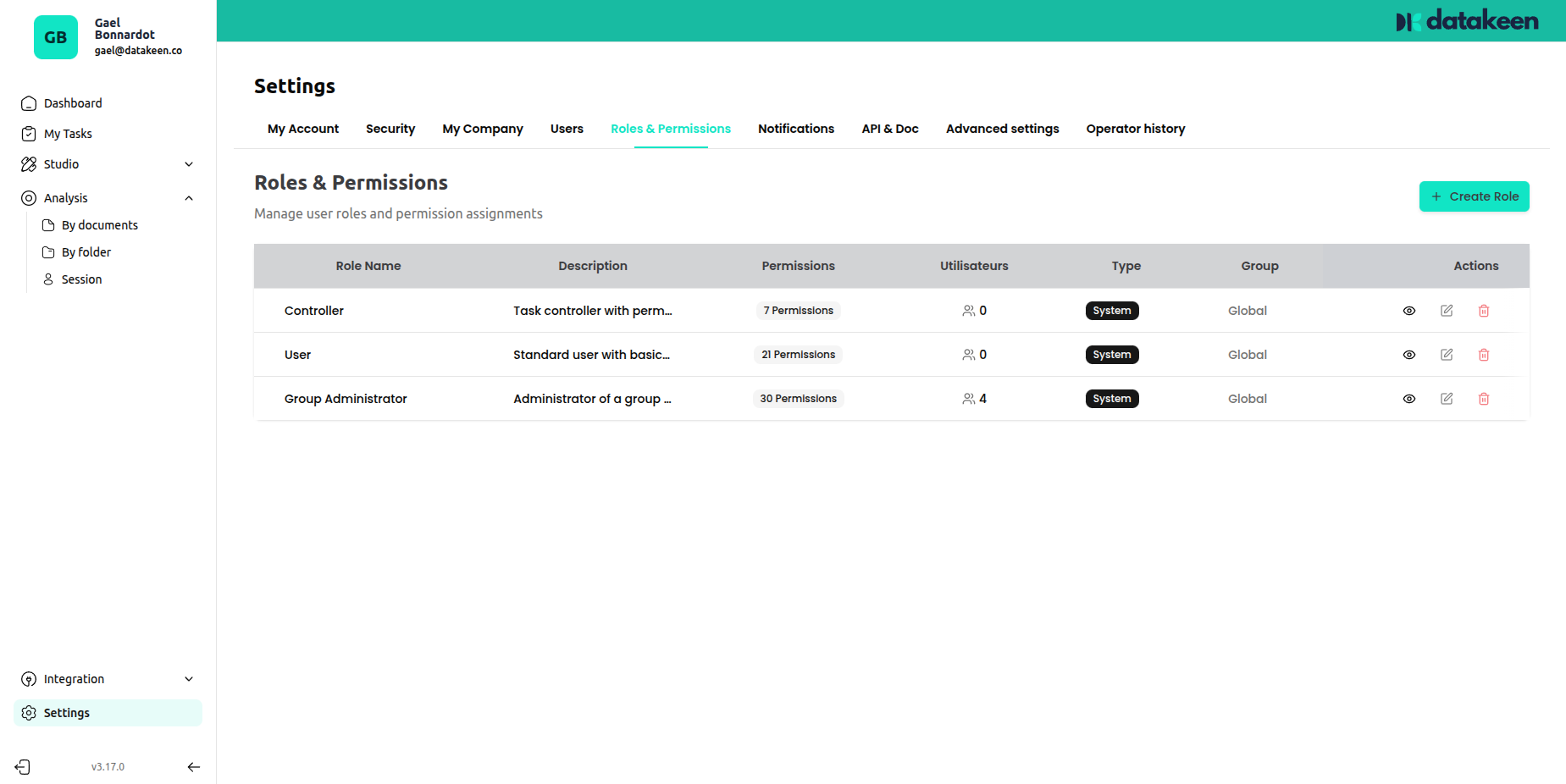
Default roles
Datakeen comes with three built-in roles:
| Role | Description |
|---|---|
| Controller | Can review and approve/reject documents and sessions |
| User | Standard user — can perform analyses but has limited admin access |
| Group Administrator | Full access to all features and settings |
These default roles cover most team configurations. You can also create custom roles tailored to your specific needs.
Creating a custom role
Click "Create role" in the top-right corner to create a new role. You'll name it and then configure its permissions in detail.
Configuring permissions
Click the edit icon next to any role to open the "Set permissions" modal.
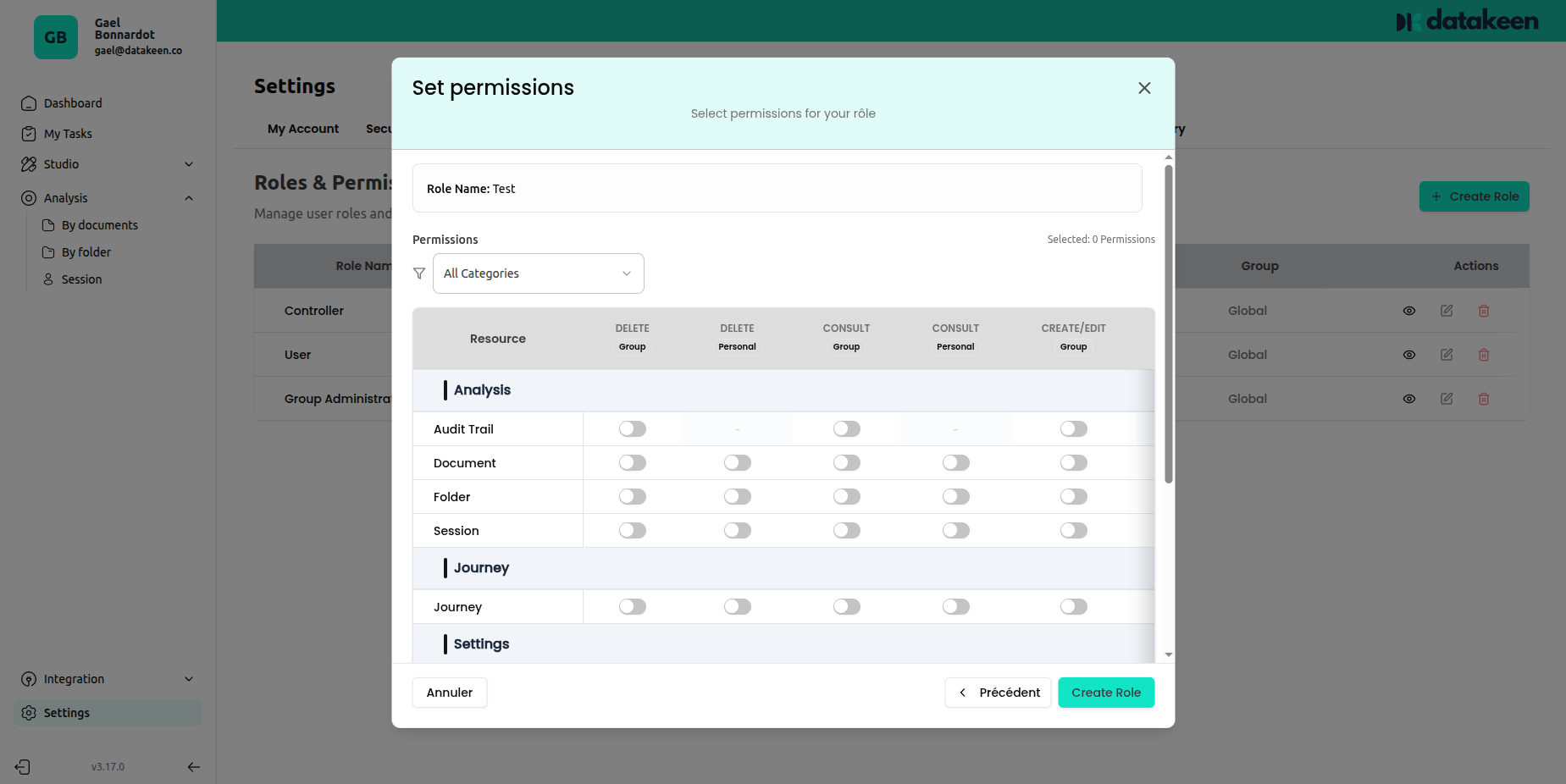
Permissions are organised by resource type (Analysis, Journeys, Settings, etc.) and by action scope:
| Scope | Description |
|---|---|
| Group delete | Delete within the group |
| Personal delete | Delete own items only |
| Group write | Write/edit within the group |
| Personal write | Write/edit own items only |
| Group read | View items within the group |
Resource types
| Resource | What it covers |
|---|---|
| Analysis | Document analyses, AI results |
| Documents | Uploaded documents |
| Folders | Customer folders |
| Sessions | Journey sessions |
| Journeys | Journey builder access |
| Settings | Settings and configuration |
Simply toggle on the permissions each role should have, then click "Create role" (or update).
Assigning roles to users
Once roles are configured, go to the Users tab to invite team members and assign them a role. Each user can have one role, which determines exactly what they can see and do.
Tips
- Follow the principle of least privilege — give each role only the permissions it strictly needs.
- Analysts who only review documents don't need write access to Settings or the Journey Builder.
- If you have contractors or temporary staff, create a restricted role with view-only access and deactivate it when their engagement ends.
- The Group Administrator role has full access — assign it carefully.
Updated 2 days ago