
e-Signature
Have your users sign a document electronically during the journey
The e-Signature node presents a document to your user and asks them to sign it electronically, directly within the journey flow. No separate tools or accounts are needed — everything happens in the same seamless experience.
This is powered by Docuseal, an open-source e-signature engine integrated into the Datakeen platform.
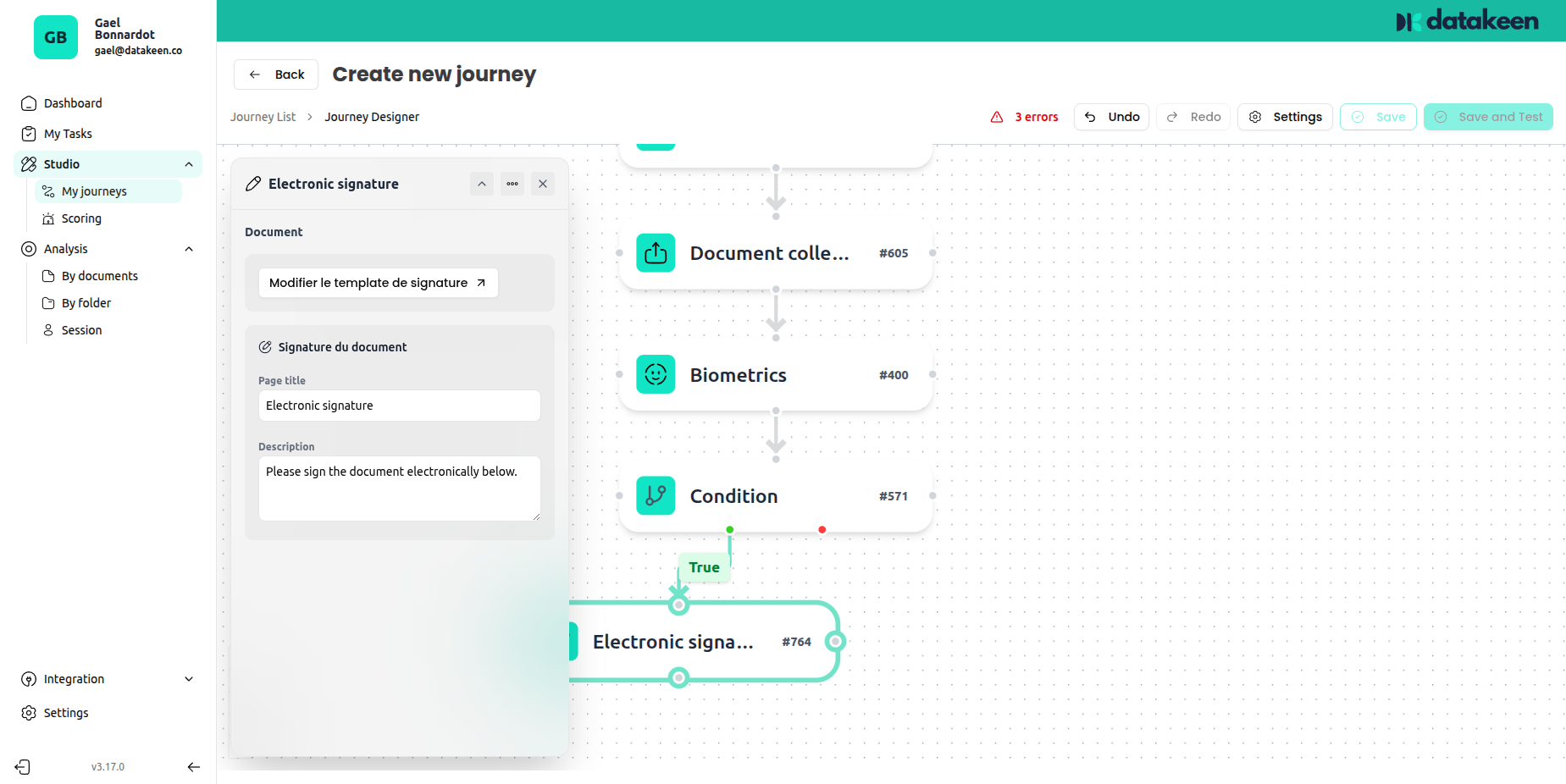
How it works
- You prepare a signature template (a document with signature fields placed on it).
- The user reaches the Electronic Signature step in the journey.
- The document is presented to the user on their screen.
- The user places their signature where required and confirms.
- The signed document is stored in the session and available to download from the back office.
Preparing the signature template
Before using this node, you need to create a signature template — a document with pre-defined signature fields indicating where the user should sign.
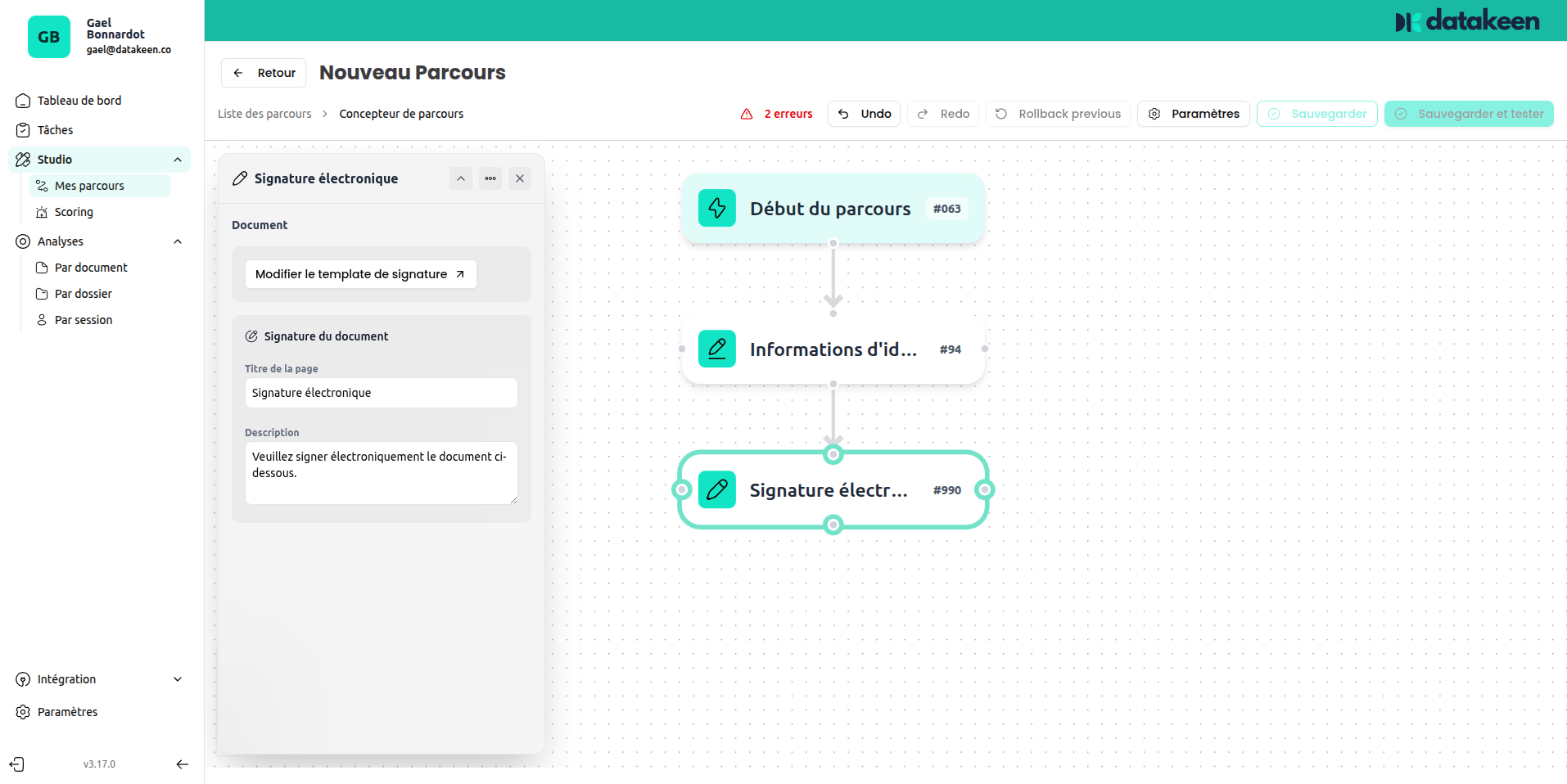
Click "Edit the signature template" in the node settings to open the template editor.
Template editor — empty state
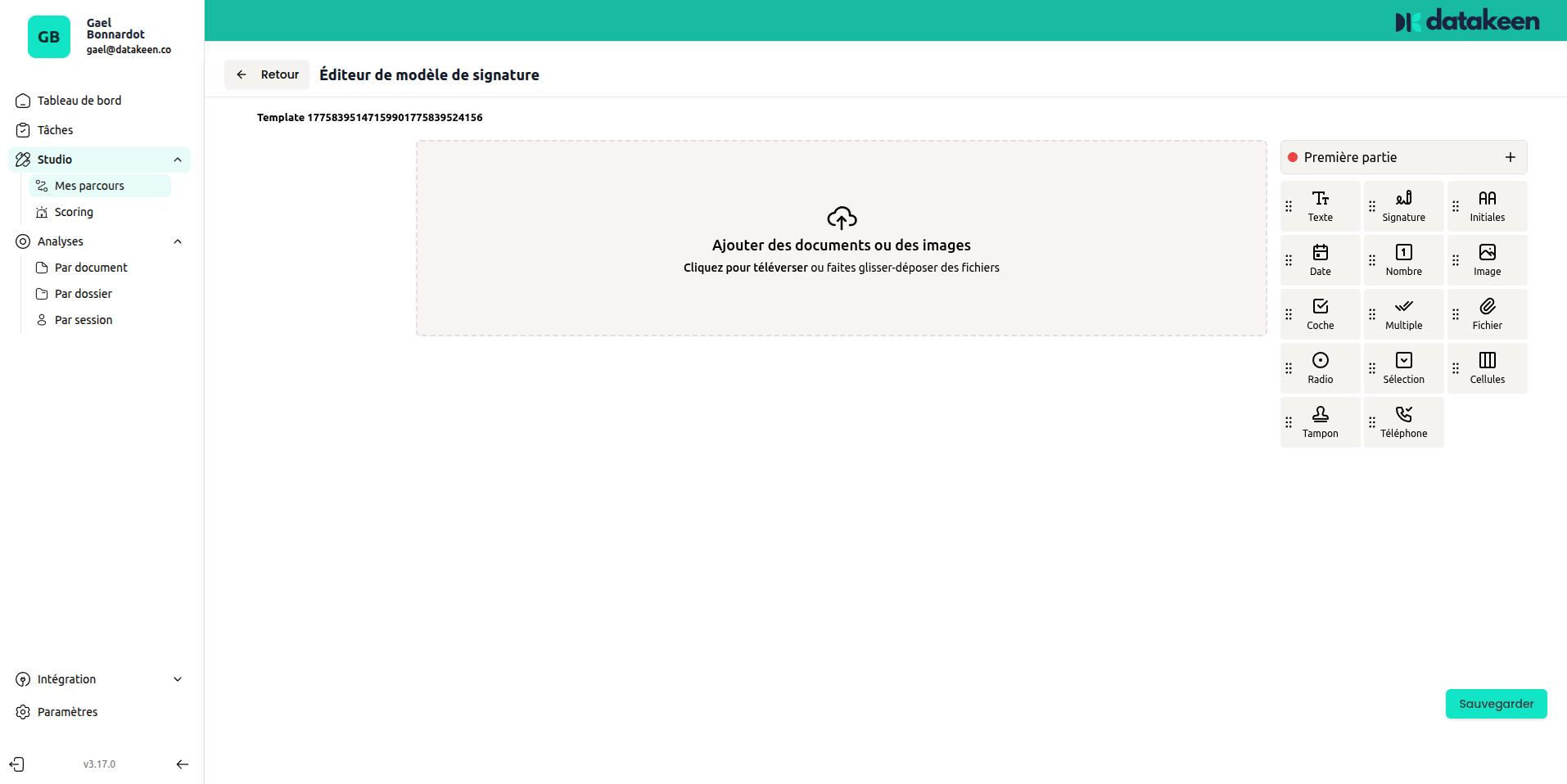
The editor starts empty. Add your document (PDF or image) by dragging it into the upload area, then use the right-hand panel to place signature fields.
Template editor — with a document
Once your document is loaded, drag signature fields from the right panel onto the document at the location where the signature should appear. You can also add:
- Text fields
- Date fields
- Initials
- Checkboxes
- ...
Linking to a generated PDF
A powerful pattern is to combine PDF Generation → Electronic Signature. First, generate a personalised PDF from the data collected during the journey, then have the user sign that very document.
When a PDF Generation step precedes the Electronic Signature node, you can set the "Document to sign" source to "PDF Generation" — the signature will be applied to the freshly generated document.
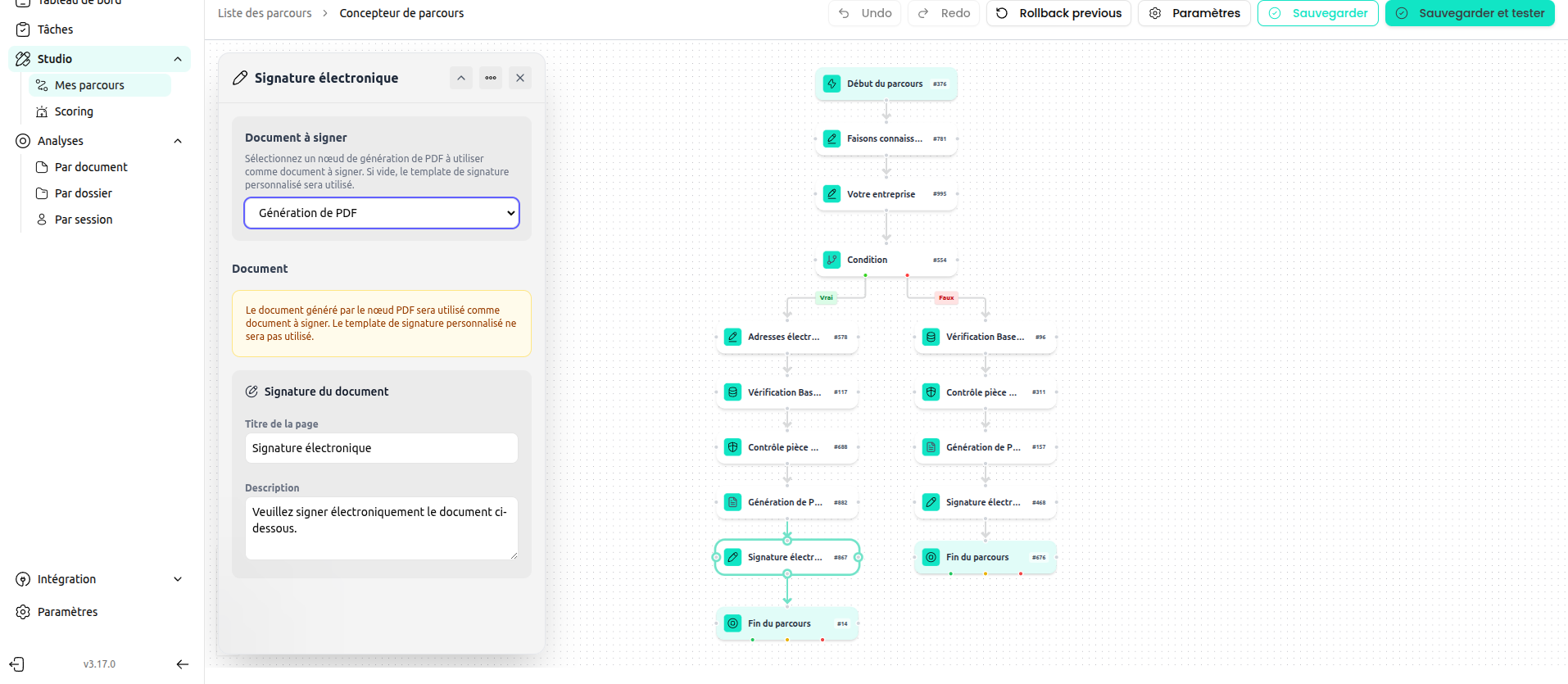
If the PDF Generation step hasn't been saved yet when you configure this, you'll see a warning. Make sure to save the journey after connecting the two nodes.
Configuration options
| Setting | Description |
|---|---|
| Document to sign | The source document: a fixed template or the output of a PDF Generation step |
| Page title | The heading shown above the document to the user (default: "Electronic signature") |
| Description | A short instruction shown to the user before signing |
Tips
- Test the signature flow end-to-end before publishing — open the journey as a user would and check that the document looks correct and the signature fields are well-placed.
- The signed PDF is stored automatically in the session record. Analysts can download it from the back office.
- For legally-binding signatures, ensure your use case complies with the applicable e-signature regulations in your country (eIDAS in the EU, etc.).
Updated 1 day ago