
Document Analysis
Review AI-powered document verification results and analyse documents manually
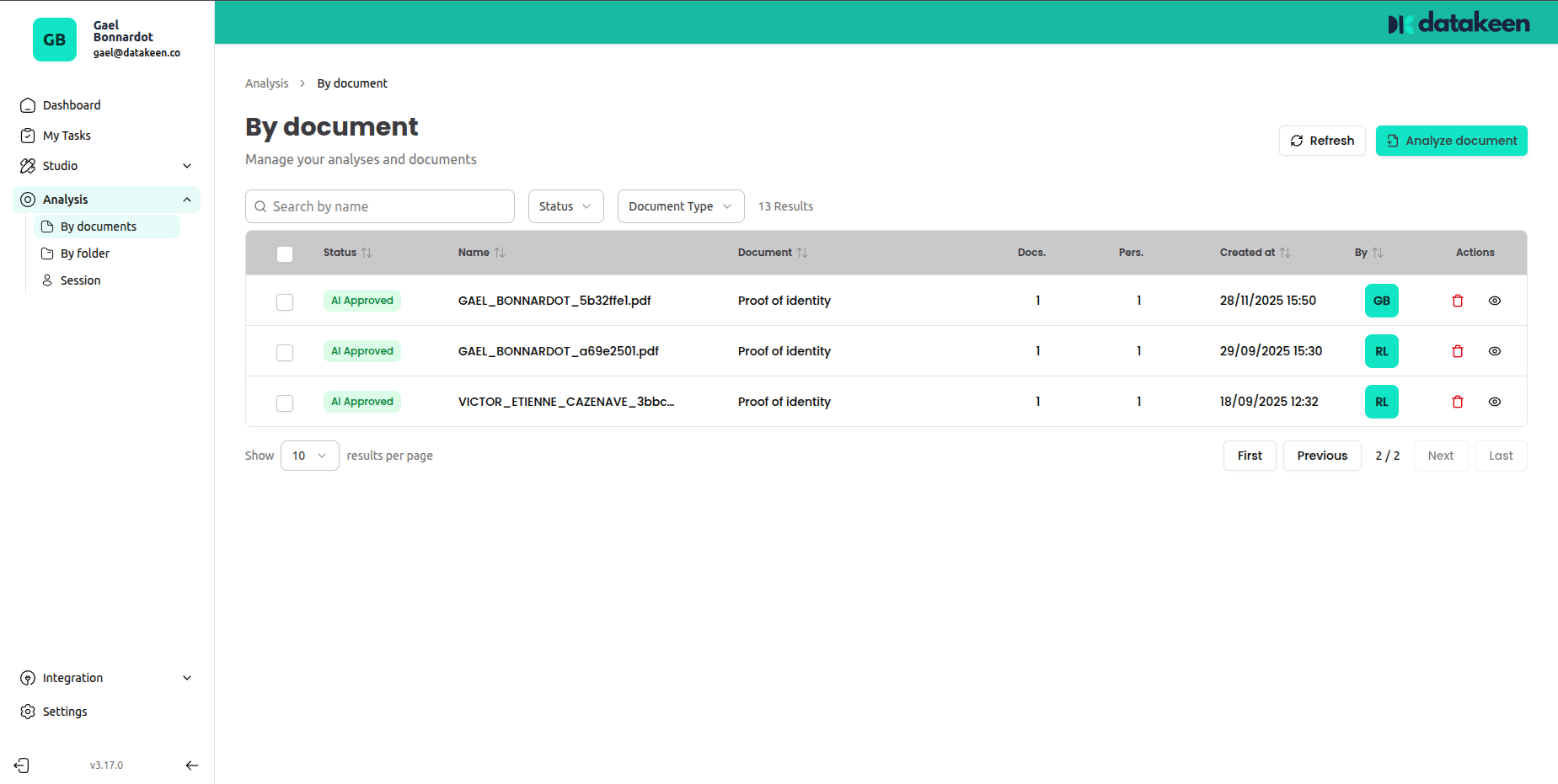
The Document Analysis view (Analysis → By document) is where you can see all documents that have been processed — whether they came through a journey session, were uploaded manually, or were submitted via API.
Each entry shows the document name, type, AI result, and current status at a glance.
Reading the list
Each row in the list represents one analysed document. The columns show:
| Column | Description |
|---|---|
| Status | The current review status (Approved, Rejected, Rejected by AI, To review…) |
| Name | The filename of the document as uploaded |
| Document | The document type identified by the AI (e.g. "Identity document") |
| Docs | Number documents checked |
| Pers. | Number of entities identitified |
| Created at | Date and time of submission |
| By | Which user or system submitted the document |
Use the Status and Document type filters at the top to narrow down the list.
Analysing a document manually
You can submit a document for analysis directly from the back office — without needing to go through a journey. This is useful for:
- Testing the AI on a document
- Analysing a document sent to you outside of a journey
- Running a one-off check for a specific customer
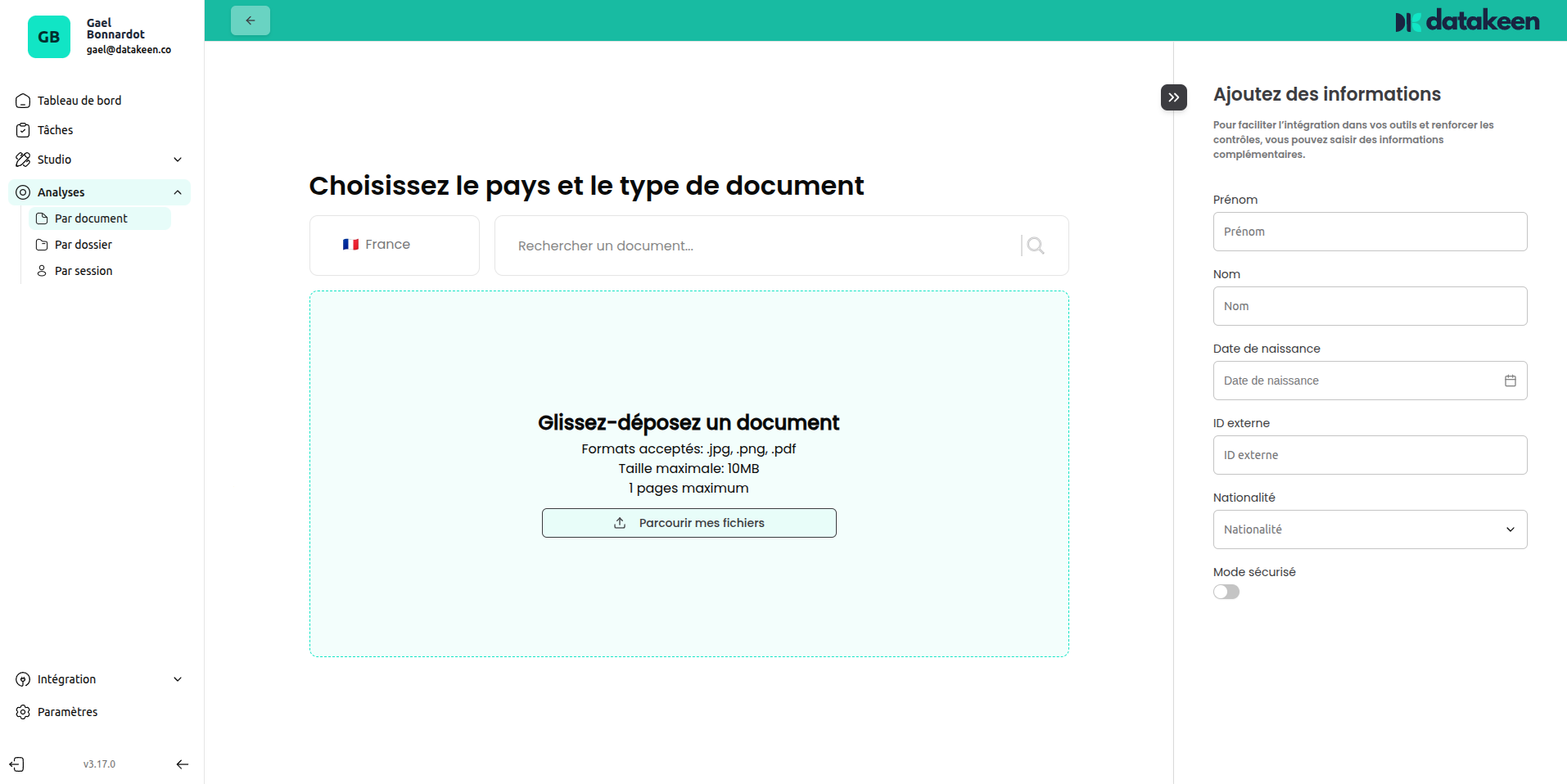
Click "Analyse a document" in the top-right corner.
Step 1 — Choose the document type and upload
Select the country and document type from the dropdown, then drag and drop your file into the upload area (or click to browse).
The right-hand panel "Add information" lets you pre-fill identity details (name, date of birth, nationality…) to enable cross-checking against the document.
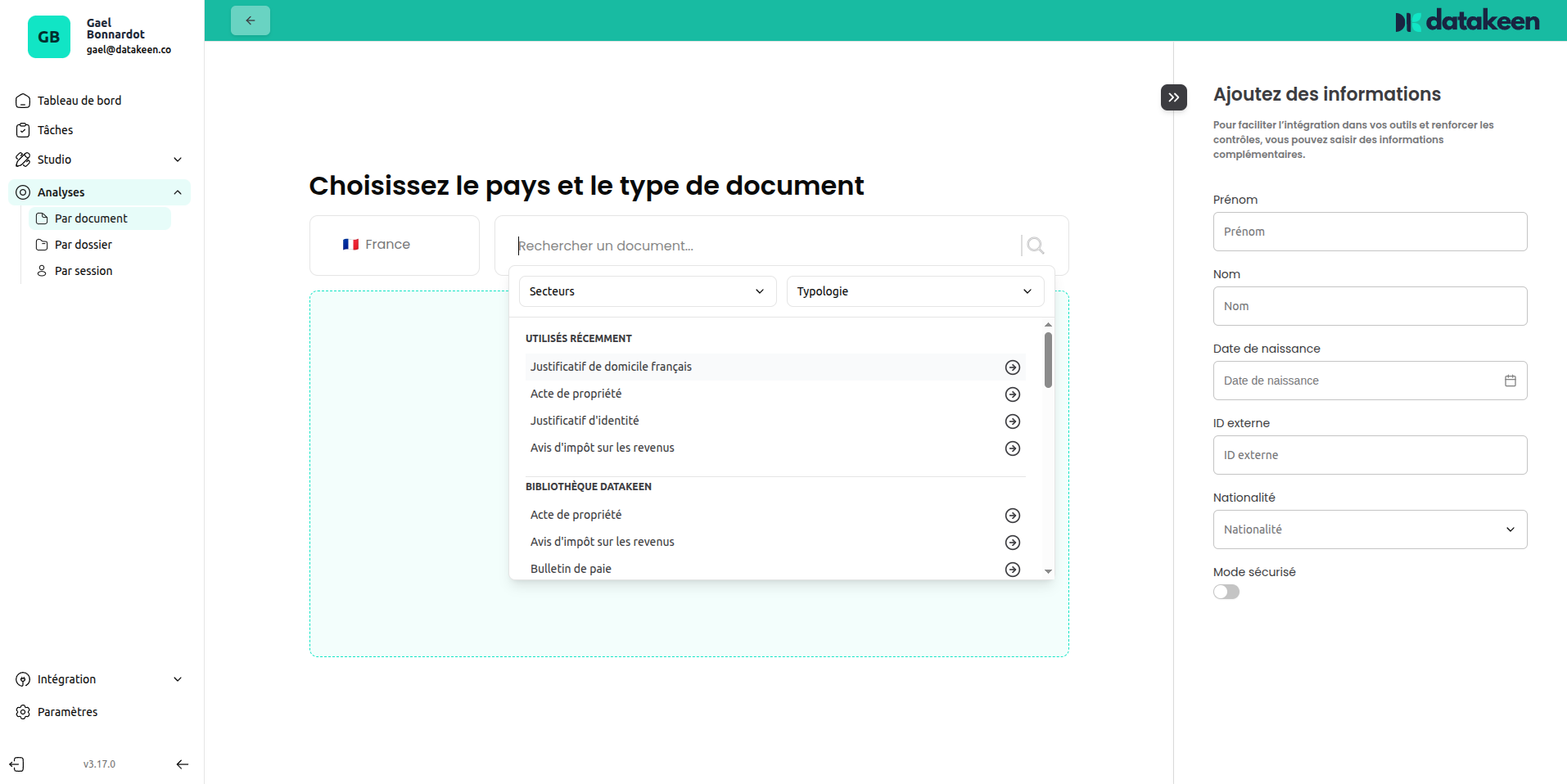
Step 2 — Browse document types
If you're not sure which document type to select, click the dropdown to see the full catalogue grouped by category:
- Recently used — your most recently used types
- Datakeen library — the full library of supported document types
Click on the search bar :
Real-time processing
Once a document is submitted, the AI processes it in real time. Results typically appear within a few seconds. The list updates automatically — no need to refresh.
If you're watching a session in progress, the status indicator will update as each step completes.
Tips
- Use the status filter to quickly find documents that need your attention (e.g. "To review").
- Click on any row to open the full analysis detail — you'll see every AI check result, the extracted fields, and any flags raised.
- Documents submitted via API or journey sessions also appear here, giving you a unified view across all submission channels.
Updated 1 day ago