
Custom Form
Collect any information you need with fully customisable fields
The Custom Form node lets you add your own questions to the journey. Unlike the Identity Information node (which has fixed fields), the Custom Form is completely free-form — you define the fields, their labels, and their types.
Use it to collect anything that's specific to your use case: a reference number, a job title, a checkbox agreement, a date, an address, and much more.
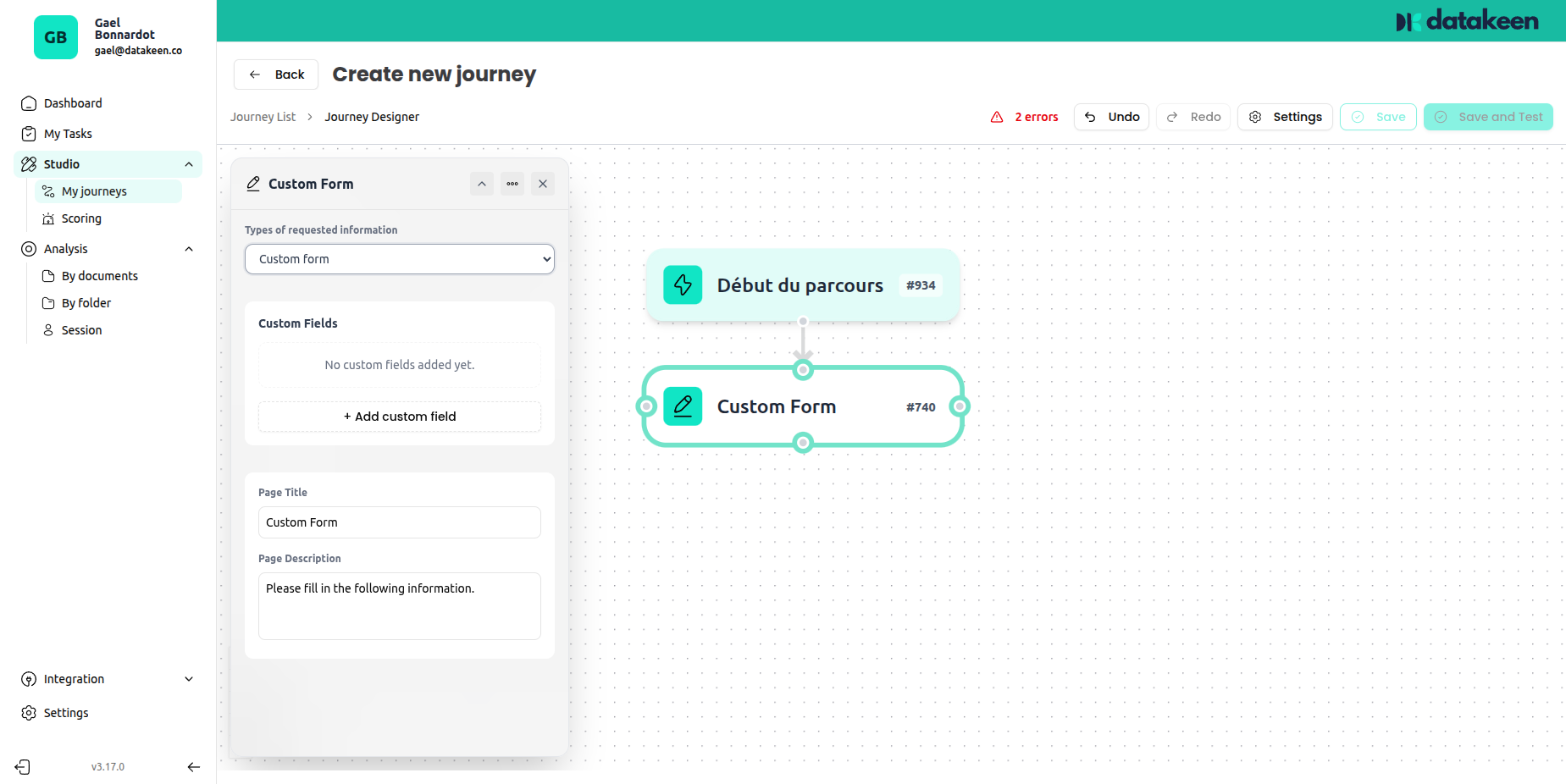
Adding fields
Click "+ Add a custom field" to add a new field. A dialog will appear where you configure the field.
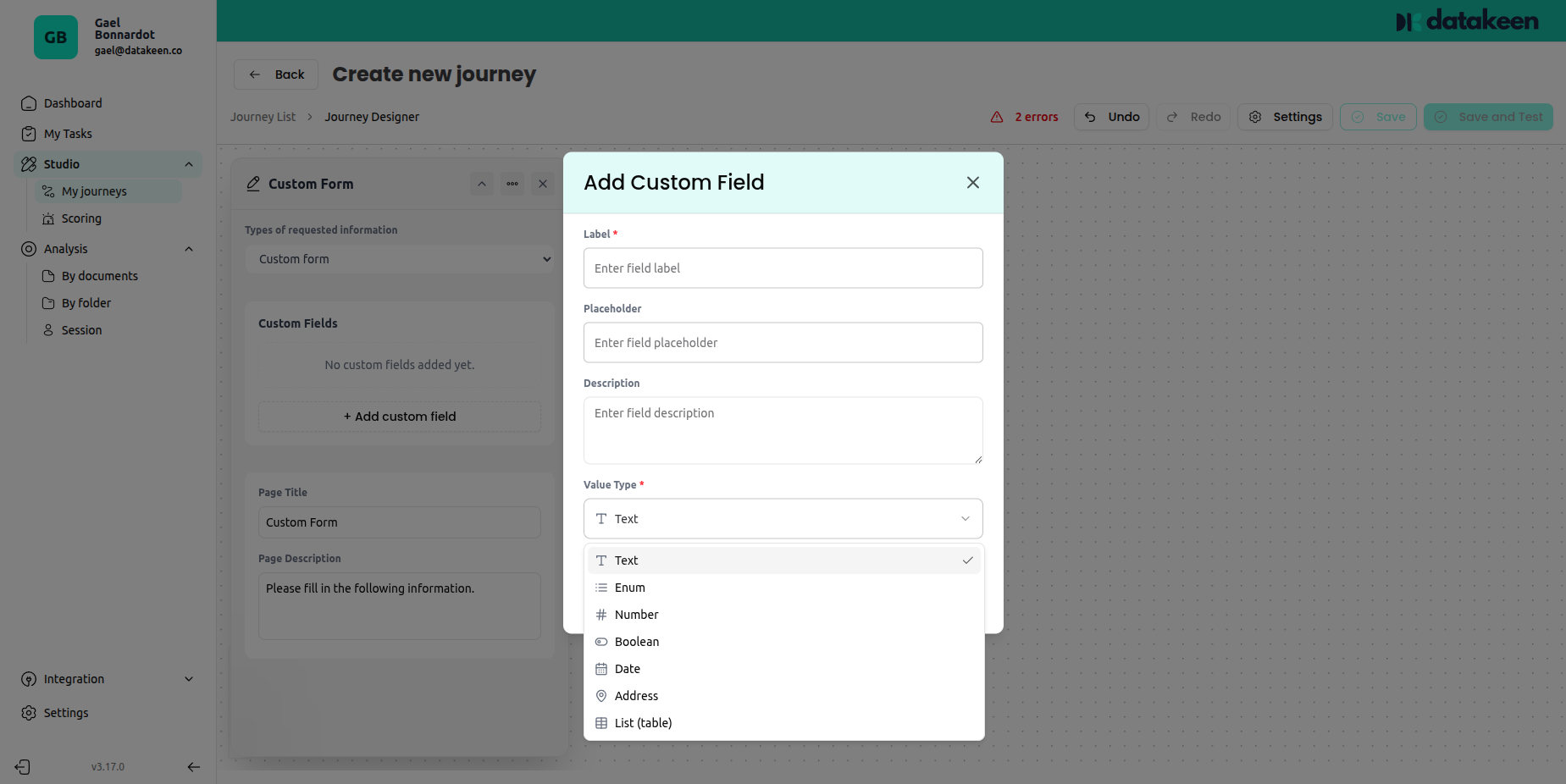
Field properties
| Property | Description |
|---|---|
| Label | The question or field name shown to the user |
| Placeholder | Hint text shown inside the input when it's empty |
| Description | An optional explanation shown below the field |
| Field type | The kind of data being collected (see below) |
| Required | Whether the user must fill in this field to continue |
Available field types
| Type | Use case |
|---|---|
| Text | Free text — names, references, comments |
| Enumeration | A list of choices (dropdown or radio buttons) |
| Number | A numeric value |
| Boolean | A yes/no toggle |
| Date | A date picker |
| Address | A structured address input with geocoding |
| Loi Sabin | A specific statutory declaration field |
Page title and description
You can set a custom title and description for the entire form page. Use these to explain to your user why you're collecting this information.
Example:
"Please fill in the following details to complete your application."
How custom form data is used
Data collected in the Custom Form is:
- Stored in the session and visible to analysts in the back office
- Available in Condition nodes — you can branch the journey based on any field value
- Usable in PDF Generation — insert any field value into a generated document using template variables (e.g.
{{fieldName}})
Tips
- You can add multiple custom form steps in the same journey if you want to group questions logically (e.g. contact details on one screen, then professional details on another).
- Keep forms short. If you have more than 5–6 fields, consider splitting them across two Custom Form nodes.
- Use Enumeration fields when the answer must be one of a known set of options — it avoids typos and makes data easier to process.
Updated 2 days ago